Grok · Tutorial
Grok Bot, from first hire to a working crew
Grok in the chat window answers a question. Grok Bot is the other product: named teammates that keep a job, a memory, and a cloud computer, and that can keep working after you close the laptop. Elon called hiring the first one “like hiring an amazing helper that learns your needs.” That only lands if the bot has one job, not a vague “be useful.”
This is the all-round setup. Official steps come from SpaceXAI’s Grok Bot docs. The judgement — what to hire first, what to keep behind approval — is the part people skip.
What it is
Each Bot has a name, a job description, its own conversation, and context that compounds. All of your Bots share one persistent cloud computer: browser, filesystem, terminal. They can use connectors where those exist, and they can drive a website like a person when they do not. Several Bots can run in parallel. One Bot runs one computer-use task on its screen at a time.
That is the difference people miss. Chat Grok resets the useful part of the relationship every session. A Bot is supposed to still know the job on Thursday.
It is also not Muse, and it is not a flowchart builder. Setup is a message: create the Bot, describe the job, grant access when it asks. The same Bots sync on desktop and on the phone.
The computer is per account, not per Bot. Files, logins and browser sessions are shared across every Bot you run. Do not treat a second Bot as a security boundary.
What you need
Access is not a separate Grok Bot subscription for most people. Officially it is included with:
- Every paid individual Cursor plan, and Cursor Teams
- Or an individual SuperGrok, SuperGrok Plus, or SuperGrok Heavy subscription linked to your Cursor account
Usage resets weekly. If you have both Cursor and SuperGrok, Grok Bot uses whichever has more remaining usage. Eligible accounts can add on-demand usage. Check plans and billing in the FAQ for the current matrix — it moves.
Grok Bot needs cloud data storage. Cursor accounts still on Legacy Privacy Mode have to switch to a supported data setting before the app will start.
Install
Download from x.ai/bot. Desktop is the full product. Mobile is the same Bots, not a second roster.
Desktop
- macOS — Apple silicon or Intel. Open the disk image, drag Grok Bot to Applications, then Open if macOS asks. Apple menu → About This Mac: a Chip field means Apple silicon; Processor means Intel.
- Windows — x64 or Arm64 installer, then Start menu. Settings → System → About → System type if you are unsure.
- Linux — x64 or Arm64 as
.deb(Debian/Ubuntu),.rpm(Fedora/RHEL), or AppImage.uname -m:x86_64is x64,aarch64is Arm64.
The app checks for updates itself. Settings → Updates if you want to force it.
Phone
- iPhone / iPad: iOS or iPadOS 18 or later
- Android 9 or later
Sign in
- Choose Sign in on the welcome screen. Later: Settings → Sign In with Cursor.
- Finish in the browser window that opens.
- Come back to the app when the browser confirms it.
- If access comes from SuperGrok, link it when asked. Desktop: Settings → Usage & Billing. iPhone/Android: Link Grok Account, then Finished Linking? Refresh My Status.
Grok Bot uses your Cursor account. If work uses SSO, complete the normal organisation sign-in. On first launch it introduces Bots, the shared computer and routines, then asks which tools you use. Those answers only shape teammate suggestions. They do not connect Gmail or Slack by themselves.
Create a Bot
Official rule, and it is the right one: focused Bots beat one catch-all. “General Helper” gives it nothing to remember against. Create a separate Bot when the work has a distinct goal, a distinct set of tools, a distinct working style, a distinct approval line, or a recurring schedule.
- New in the sidebar, or
Cmd/Ctrl+N. - In New chat, choose Create new Bot — or type a name and choose Create “name” Bot.
- It opens as New Bot. Bot menu → Edit Profile: name, label, description, avatar.
- Give it a concrete first task. Do not start with “what can you do?”
Put standing rules in the description. Put today’s work in the message.
- Description: “Never send external messages without approval.”
- Message: “Draft follow-ups for these twelve accounts.”
A description that actually works sounds like operations, not branding:
Own the weekly account-health review. Pull product usage and support signals, flag evidence of churn or expansion, and produce a linked watch list. Never contact a customer or change an account without approval.
You can pin active Bots, hide ones you are not using (hiding does not pause routines), duplicate a role for a new region or car, or delete. Deleting removes that Bot’s conversation and routines. Shared-computer files and logins can remain. Hide it if you might need the work later.
A first task that actually finishes
A strong request has five parts:
- Outcome — what should be finished?
- Sources — which apps, sites, files or threads?
- Constraints — what must it avoid or ask first?
- Deliverable — what should it return?
- Review point — when does it stop for you?
Five minutes, no login required — attach a document:
Summarize this document in five bullets. List every date, decision, and open question in a separate section. Cite the page or section for each item. Do not change the source file.
Then give it a real tool, still read-only:
Open our analytics dashboard and compare new-user activation for this week with the previous four weeks. Identify the largest step-level change and draft a short investigation plan with links to the relevant charts. Do not change any dashboards. Ask me to sign in if needed.
Dictate with Cmd/Ctrl+D on desktop, or Start dictation
on the phone. Start voice chat is a live conversation. Correct the
first result out loud: “Use this format for future weekly reports:
five bullets, source links inline, and a final section called
Decisions needed.” That sentence is how the Bot gets smarter. Not
by magic. By you naming the preference.
Roles that work well in the official use-cases are all the same shape: research, draft, stop for review. Sales outbound. Talent scout. Paid media. Expenses. Product performance. Bug reproduction. Account health. Chief of staff. Start with read-and-prepare. Add send/change/publish later, behind approval.
Tools, takeovers, plugins
When the Bot hits a login, CAPTCHA, passkey or two-factor prompt, it should hand the computer to you rather than invent a bypass.
- Open Agent Computer from the conversation.
- Take over.
- Enter the password, passkey, 2FA or CAPTCHA yourself.
- Give control back.
That browser session lives on the shared computer, so your other Bots can reuse it when that is appropriate. For supported services, Marketplace in the sidebar also has plugins you authenticate in the browser — use a connector when one exists; it is more reliable than driving the site.
A site can still block automation, expire a session, or demand a human. That is normal. The Bot stops. You finish the human step.
Skills vs routines
A skill is how to do a task. A routine assigns that workflow to one Bot and says when to run it — on a schedule, or after an event where that is supported.
Walk it through once. When Teach a task is available, you can record a browser workflow from the computer view (up to ten minutes). It drafts a skill. You review and test. Then, and only then, turn it into a routine. Official order:
- Job, sources, output format and boundaries in the description.
- One real task with a safe scope.
- Correct until the result is reviewable.
- Save the process as a skill.
- Test on a second input.
- Create a routine only when retries and failure cases are defined.
- Keep consequential external actions behind approval.
More than one Bot
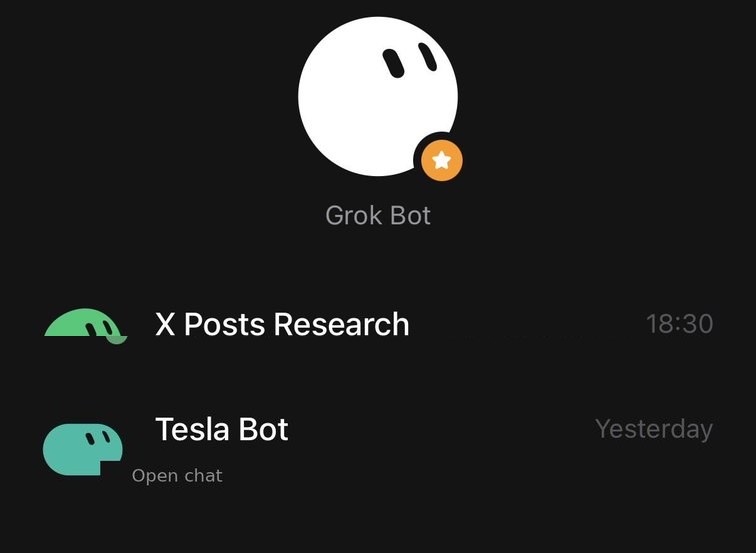
Start with the smallest useful roster. One Bot owns an end-to-end outcome. Add another only when there is a stable specialist role. Put them in a group chat when the handoff itself needs to be visible — a launch coordinator, an editor and a reviewer in one thread, instead of you being the router.
Bots can message each other, share files, and pass ownership of a task. Conversations and learned memory stay per Bot. The computer does not.
Existing Bots can also suggest a new specialist when a job needs a long-lived owner. Ask before you let it spawn a crowd.
Marketplace Bots and shared templates create a copy on your account. The other person does not get your computer, logins or history. A public share link shows the Bot’s configuration — strip API keys, internal URLs and anything you would not paste in a public doc. Shared Bots are other people’s configs; adding one accepts the third-party bot terms.
Work from X
Tag @bot in a post or a reply. Your main Bot picks the post up as a task; @bot confirms with a short public reply. That needs an X account connected to your Grok account, and it is not in every region yet. If it stays silent, check the regional notes in the overview.
Separately, Grok Bot can search, read and monitor X on its own — live for every user, with no X connector to set up. The official demo asked it what people were saying about a mobile app; it came back having read hundreds of posts and sorted the themes. Monitoring is the part that keeps running: product feedback, a breaking story, a weekly roundup of a beat.
Approvals and the shared computer
Sensitive actions can stop for you. Passwords, 2FA and CAPTCHAs always should. Put standing boundaries in the Bot description, then add narrow Ask first rules for sending, publishing, deleting, purchasing, or changing production systems. Auto-review can enforce some of that when you turn it on.
Memory is preferences, role context and summaries — not an authoritative source. For a decision that matters, tell it to reopen the live system instead of trusting last week’s summary. Correct stale assumptions in the conversation, and promote anything that should stay true into the description.
Training opt-out follows your Cursor account privacy settings. Between users, isolation is strict. On your own account, assume every Bot can see the computer.
Lauren Tan, who builds Grok Bot at SpaceXAI, said the bots run on Claude Opus 5.5 and can spawn cloud agents on whatever Cursor models they have. Repeat the names if a Bot is going to sit near money, mail, or a car.
If you want it on a Tesla
Vehicle access is a plugin problem, not a prompt trick. In the Tesla developer options you can grant Grok Bot enough to read state and run the commands you actually want — climate, battery, lock status — and nothing extra. Ask the Bot to walk you through the current Tesla developer flow; that path changes, and a frozen screenshot in a blog post goes stale.
The useful first job is still a schedule, not a party trick. Ten minutes before a regular commute: check outside temperature, then precondition, wheel heat, defrost or cabin cool. Sunday: look at the battery and say whether it needs a plug. Keep unlock, remote start and anything that moves the car behind an explicit ask.
If a bot is allowed near a Tesla, the approval line belongs in the description before the first command, not after the first mistake.
When it is worth it
You need a reason. A Bot that owns a weekly digest, a watchlist, a car that is actually warm, or a research beat will earn the weekly usage. A Bot you open when you are bored will not. Usage resets. Spend it on jobs that still exist next Tuesday.
Download Grok Bot Official get-started Grok desk
Further reading from SpaceXAI: overview, create and manage Bots, use cases, FAQ. Related on this site: the crew note, X monitor clip, Opus 5.5 clip.